P Video Animate: make a picture move like your video
P Video Animate copies the motion of a video onto a still character or scene. How to pick the two inputs, three prompts, the settings, and its limits.
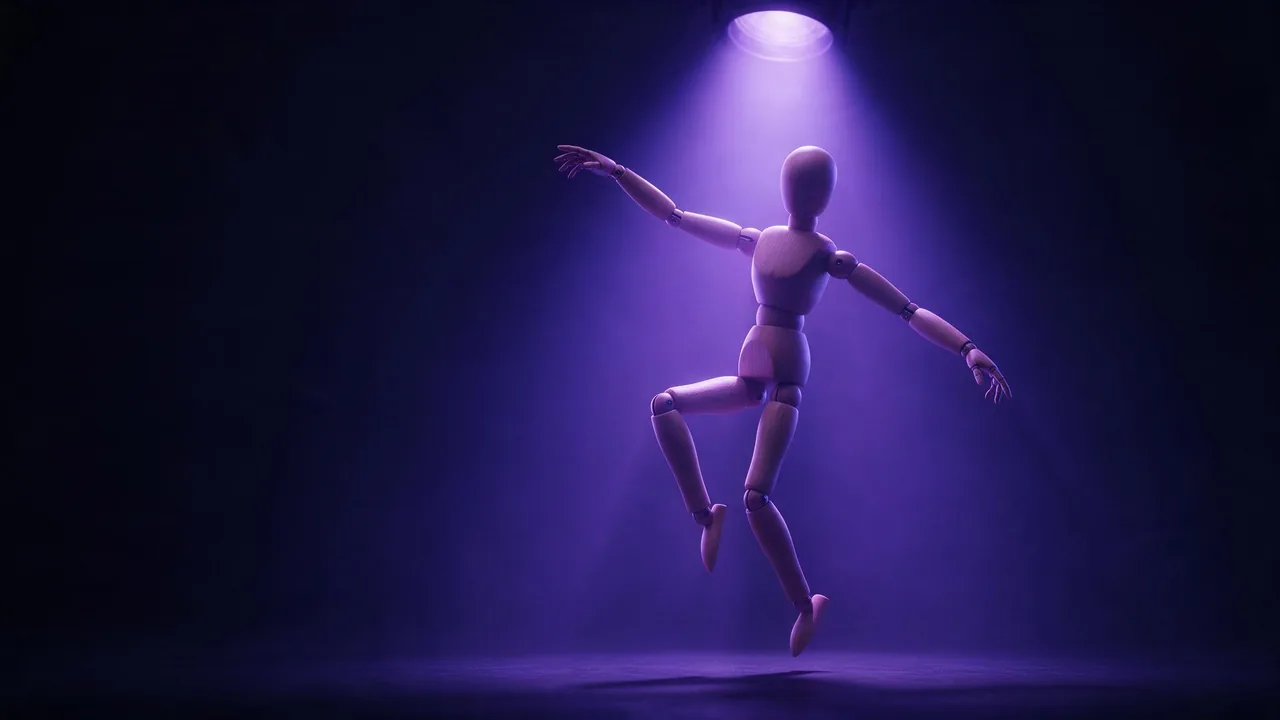
Think of it as casting. P Video Animate needs two things from you: a video that does the moving, and a picture of who or what should be seen moving. The video is the choreographer, the picture is the actor. The model takes the motion from the first and the look from the second, and gives you a clip of your character performing the source's moves. On the model page, a still anime illustration of a girl in a cardigan does a little dance this way.
Motion control is a small corner of the models page, and most of its neighbours cost many times more per render. This one is the inexpensive way in: good for trying an idea, for social clips, for bringing a mascot or an illustrated character to life.
Step 1: choose the motion clip
- One performer, whole body in frame. The model has to read the movement; arms leaving the frame or a second dancer crossing in front are guesses waiting to happen.
- A steady camera. Tripod footage or a still phone works best. If the camera swings, the model has to separate camera motion from body motion, and it will not always guess the way you want.
- Trim it first. There is no length setting, so the clip you upload is the performance you get. Cut it to the few seconds you need before you upload.
- Footage you may use: your own, or a clip you have the rights to.
Step 2: choose the picture
Match the pose and framing of the clip as closely as you can. A full-body character standing upright suits a full-body dance; a head-and-shoulders portrait asked to copy a jump has to invent legs. Plain, uncluttered backgrounds come through cleanest. Illustrated characters, mascots and toys are where this model is most fun, and they spare you the consent question that comes with animating a real person. If you do use a photo of a real person, it should be you or someone who agreed to it.
Step 3: the prompt (optional, but use it)
The prompt is optional. It says how the picture should follow the motion, which is where you fix the details the model would otherwise improvise.
Animate the reference subject using the motion from the source video.Animate the cartoon fox mascot using the dance from the source video. Keep its orange fur, white scarf and big round eyes unchanged, and keep the plain studio background still.Make the character in the illustration perform the waving and turning motion from the source video, with the hair and skirt swaying naturally as she turns.The settings
- Resolution has two steps, the lower one by default. Test there; render the keeper at the higher step. The Generate button shows the new price as you switch.
- Frame rate stays at the source's own by default, or you can pick one of two fixed rates. Leave it on original unless your edit needs a set rate.
- Audio is saved with the result unless you switch it off. If your motion clip has music you do not own, switch it off and add your own track later.
- Seed repeats a result. Fix it when you change only the prompt, so you can see what the words did.
Where it falls short
It transfers motion, it does not direct a scene. There is no camera control, no second character and no length setting beyond trimming your source, and fast spins, crossed arms or a hand passing in front of the face are where limbs can blur or swap. Treat it as a quick, inexpensive tool for short moves. For a scene from a prompt alone, see choosing an AI video model; to bring a still to life without a reference clip, see turn a photo into a video.
Questions
What does P Video Animate need?
One video for the motion and one image for the subject or scene. The prompt is optional.
How long is the result?
There is no length setting; the motion comes from your source video, so trim it to the part you want before you upload.
What does a render cost?
It is quoted for your inputs and settings, and starts well below most motion-control models. The price shows on the Generate button, and a failed render is refunded.