Black Friday ad creatives with AI: banners, product shots and a short clip in one afternoon
Build a Black Friday ad set with AI: product shots from your real photo, a banner with checked sale text, three ad formats and a short clip from one still.
Picture a small shop that sells ceramic mugs online. The owner wants a Black Friday campaign: a product shot for the shop page, a sale banner, the same idea cut for stories, the feed and a website header, and one short moving clip for the ads. There is no photographer booked and no agency. This post is the afternoon that gets it done, in the order that wastes the least money, plus the two things an AI ad set must never make up.
Start in October, not on the Thursday before
The renders take minutes. Everything around them takes days: ad platforms review new creatives before they run, the price and the end date of the offer get decided late, and somebody always spots a typo on the last evening. Make the set a few weeks early with a placeholder where the discount goes, so the only job left in sale week is to type the final number into your layout and send it.
Step 1: the product shot comes from your real product
A prompt that says "a matte blue ceramic mug" produces a lovely mug that you do not sell. The handle is a different shape, the glaze is the wrong blue, the base has no stamp. A buyer who orders it and receives something else will send it back, and might report the ad. So skip pure text-to-image for the product itself.
Instead, take one clean photo of the real mug on a plain table in daylight. On the models page, pick an image-to-image model, attach the photo with + Image in the composer, and ask for a new setting while the product stays as it is:
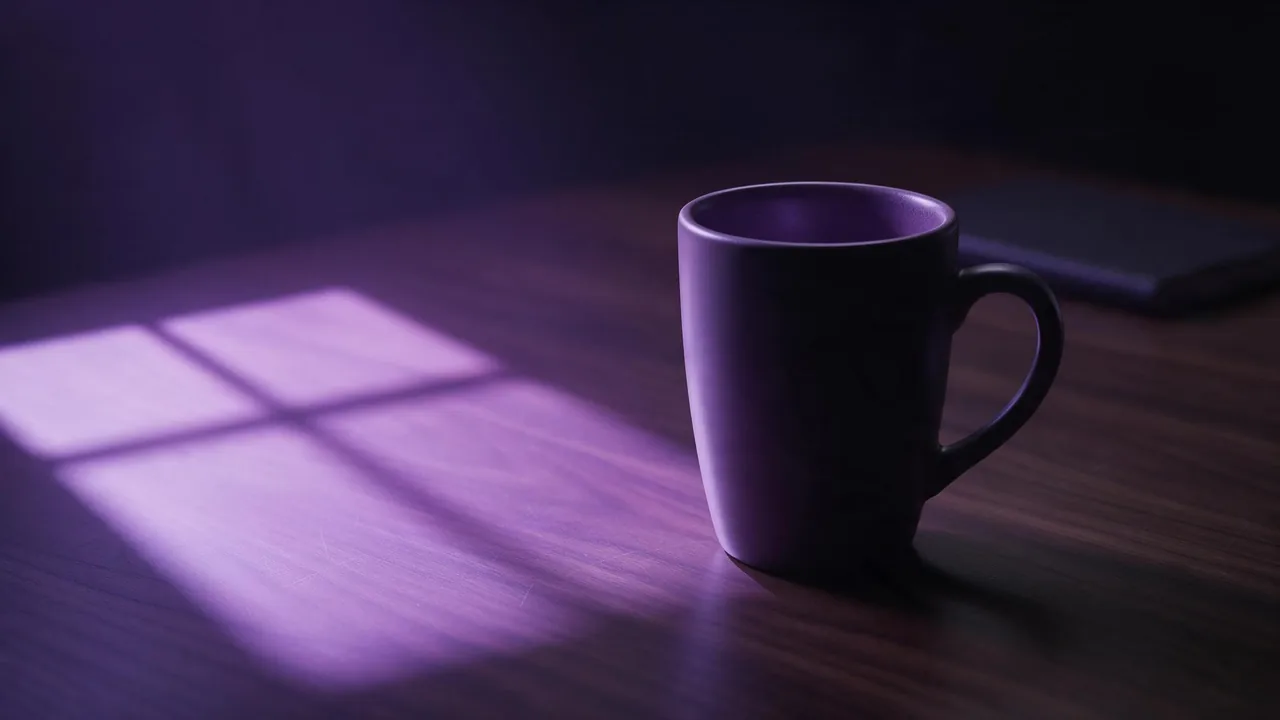
Place this exact mug on a dark slate surface with a few dry autumn leaves around it, soft warm window light from the left, shallow depth of field, deep plum and copper colour palette. Keep the mug's shape, handle, glaze colour and the stamp on its base exactly as in the photo.Then compare the result with the photo, side by side, at full size. Edit models redraw the whole picture and try to hold the locked parts steady; small marks, printed text and exact colours can still drift. If the glaze moved, say so in the lock and render again, or try another edit model. The material words guide helps when ceramic comes out looking like plastic.
Step 2: the banner, with the words added by you
For the banner, generate a background with a quiet area for the headline, and leave the words out of the prompt. Image models still misspell small text, and a sale banner is the worst place for a wrong number: "40% off" in a picture next to a checkout that takes 30% is a complaint waiting to happen, and in some places a misleading price claim is a legal problem too. Put the discount, the dates and any conditions on in your own layout tool, then have one person check every figure against the live offer in the shop, on the day the ad goes out. The event poster guide uses the same split for dates and addresses.
The same matte blue mug from the reference on a dark slate surface, steam rising, deep plum and copper colour palette, the right half of the frame empty dark plum with a soft gradient, studio product photographStep 3: one concept, three frames
Ad placements want different shapes: 9:16 for stories and short video, 1:1 for the feed, 16:9 for a website header or a video thumbnail. Do not crop one render three ways. A tall crop of a wide picture loses the product or the empty area, and stretching never looks right. Render the same prompt and the same reference again at each ratio, using the model's aspect ratio setting, and move the empty area in the wording if needed: top third for 9:16, right half for 16:9. The aspect ratio guide covers which shape goes where.
Step 4: a short clip from the hero still
A moving ad catches the thumb that scrolls past stills. Take your best 9:16 frame, open an image-to-video model in the studio, attach the still and describe one small motion: steam drifting up, a leaf sliding off the table, a slow push in on the mug. Ask for about 5 seconds; that is plenty for an ad loop and keeps the price low. Avoid asking the product to turn or the handle to come into view, because anything the still does not show, the model has to invent. The motion prompts guide lists moves that hold up.
Step 5: one palette across the whole set
A campaign looks planned when every piece shares colours. Pick two or three colour words before you start (here: deep plum, copper, slate) and put the same words in every prompt, including the video one. Then lay the finished set out side by side as a grid. If one picture runs cold or too bright, re-render that one rather than patching it later. The colour palette guide has wording that keeps colours steady.
What not to fake
- Product details. No invented features, sizes, materials or colours you do not stock. If the edit changed the product, the picture is not usable for that product.
- Reviews and ratings. Never generate star badges, customer quotes, "bestseller" seals or award stickers. Use real reviews from your shop, in your layout, with permission where needed.
- People using the product. A made-up customer holding your mug in a testimonial-style ad reads as a real endorsement. Keep the set to products and scenes.
- Stock and urgency. "Only 3 left" belongs in the ad only if it is true when the ad runs.
What the studio does not do here
It returns image and video files, not finished ads: the text, the logo, the price and the export for each ad platform happen in your own design tool. It cannot check your offer, your stock or the rules of an ad network. It will not keep a product pixel-identical across many edits, so compare every render with the real photo before it goes live. And each render, re-roll and clip is priced on its own, with the price shown on the Generate button first; plan a few drafts per frame, and read what a usable image really costs before you set the budget.
Questions
Can I use AI product photos for a Black Friday sale?
Yes, if the picture shows your real product. Start from a photo of it with an image-to-image model, compare the result with the original, and keep invented details out.
Should the sale percentage be part of the AI image?
No. Generate the background with empty space and add the discount, dates and conditions in a layout tool, then check them against the live offer before the ad runs.
How do I get the same ad in 9:16, 1:1 and 16:9?
Render the same prompt and reference at each aspect ratio instead of cropping one picture, and adjust where the empty area sits for each shape.