Vidu Q4 reference to video: one clip from many references
Vidu Q4 reference to video builds one clip from several reference images. Who should use it, ready prompts and the tricks that keep characters consistent.
Here is the problem it solves. You have a character, a jacket, a location and a product, each in its own picture, and you want them in the same shot. Image to video can only start from one frame, so you would have to paint that combined frame first. Vidu Q4 Preview reference to video skips that step: you hand it a stack of references and a prompt, and it builds the scene around them. The example on its page is a fashion clip of a man in a leather jacket and sunglasses walking through an industrial space, the kind of shot that normally needs a styled start frame.
Who should pick it
- Brand and fashion work, where the outfit or the product must stay recognisable while the scene is new.
- Series with a recurring character. Feed the same face and clothing references to every episode and the character stays the same person.
- Anyone without a start frame. If you would rather describe the scene than draw it, this is the model; if you already have the exact frame, use the image to video version instead.
The inputs, and what each one is for
Prompt is the only required field. Images take several references at once (the field accepts a generous stack). Audios, under Advanced, take a few audio references for the clip's sound, on top of what Generate audio writes by itself. Then the usual controls: aspect ratio (widescreen by default, plus vertical, square and two in-between frames), resolution from a light preview up to a large final size, duration in whole seconds, Generate audio (on by default) and a seed.
Ready prompts
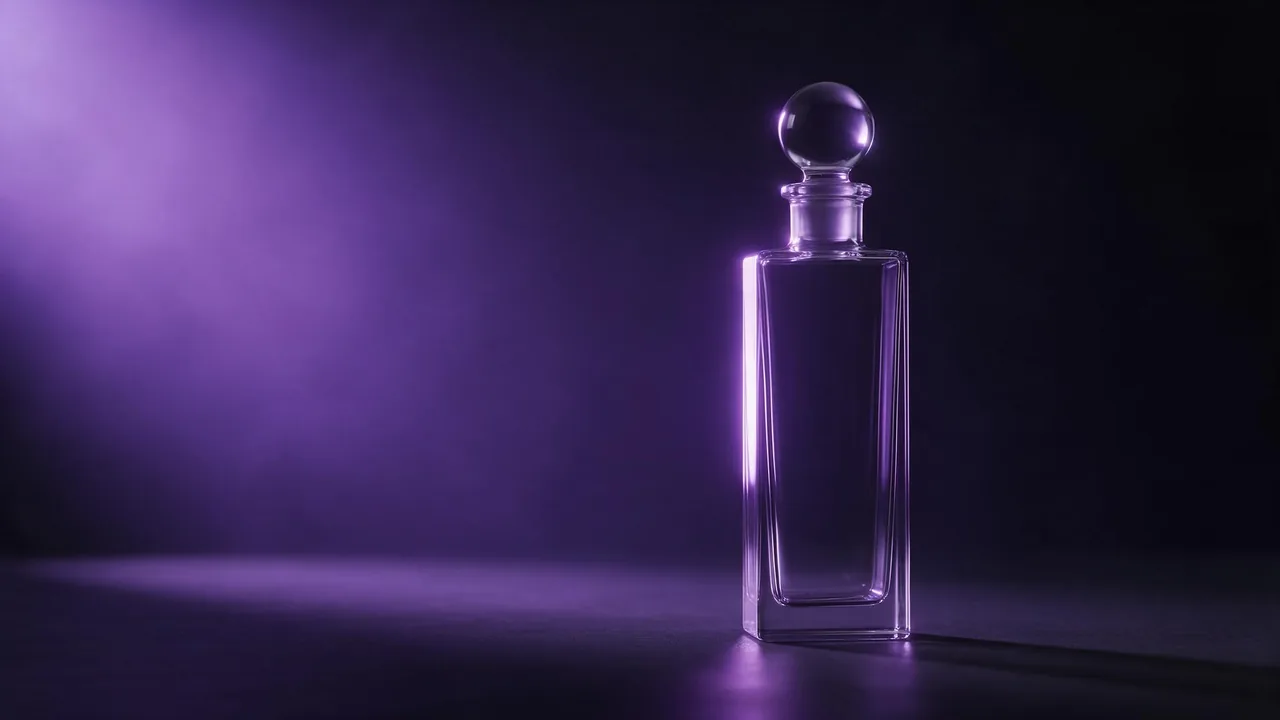
The man from the portrait walks toward the camera through a concrete warehouse, wearing the leather jacket and the sunglasses from the other photos. Slow tracking shot, cold daylight through high windows, his footsteps echo.The perfume bottle from the reference stands on wet black stone, a single drop falls onto the cap, slow macro push-in, soft violet rim light, a quiet low hum.The girl from the first image sits on the train seat from the second image, looks out of the window and says quietly: "We are almost home." Rain on the glass.Tricks that keep it consistent
- Fewer, cleaner references beat many noisy ones. A plain-background photo of the face and one of the outfit carry more than ten casual snapshots that disagree with each other.
- One subject per reference. A picture with three people in it leaves the model guessing which one you meant.
- Draft at the lowest resolution and duration. The price on the Generate button tracks both. Once the scene works, fix the seed and render the final at the size you need.
- Keep the same reference set across a series, in the same order, and reuse the prompt wording for the character. The consistent style guide has more on building a reusable reference set.
The honest limitation
References are guidance, not a paste. Logos, printed text on clothing and fine jewellery come out approximately, and the more references you add, the more each one gets averaged. When a small detail must be exact, generate a start frame with that detail right and use image to video instead. It is also a preview model, so expect to reroll a scene more often than with a mature one; the video model guide helps decide when a steadier model is the better buy.
Questions
Do I have to upload reference images?
No. Only the prompt is required, so it also works as plain text to video. The references are what make it worth choosing, though.
What are the audio references for?
Optional audio files the clip's sound can draw on. They sit under Advanced; without them, Generate audio still writes sound for the scene.
Can it make vertical video?
Yes. Pick the vertical aspect ratio before you run; widescreen is only the default.