Vidu Q4 image to video: animate a still, with sound and speech
How to get good clips from Vidu Q4 Preview image to video: what it does well, three ready prompts, the settings that matter and one honest limitation.
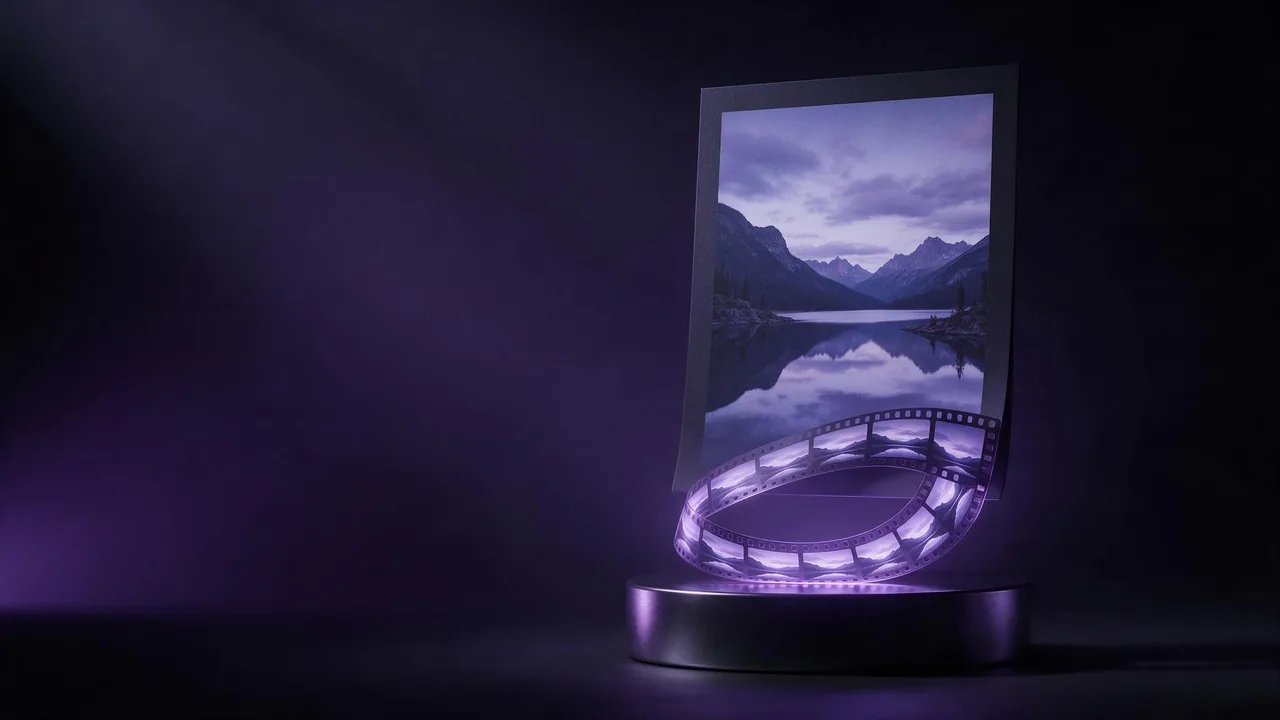
Most image-to-video models give you a silent clip and leave the sound to you. Vidu Q4 Preview image to video does not: it takes one picture and one prompt, and by default it writes the audio along with the motion. In one of the examples on its page, a tennis player looks into the camera after a match and says a line, and the mouth moves with the words. That is the reason to pick it. If all you need is a few seconds of drifting clouds over a landscape, a cheaper neighbour on the models page will do the same job.
What you give it
- One image (required). This becomes the first frame, so the composition, the light and the faces are all decided here.
- A prompt (required). Describe what happens next, not what is already in the picture.
- Resolution. A list that runs from a light preview size up to a large final size, with a sensible middle setting as the default.
- Duration. A slider in whole seconds. The default is short; the top of the slider is long enough for a full spoken sentence and a reaction.
- Generate audio. On by default. Switch it off when the clip will sit under your own music.
- Advanced: prompt expansion (off by default) and a seed.
Where it shines
Talking portraits and small scenes with a sound source in them. A character who says one line, a kettle that starts to whistle, rain on a window with the rain audible. Because sound and picture come out of the same run, the timing tends to agree: the door closes when you hear it close. Give the model a clean, well-lit start frame with the subject large in the shot, and it keeps the face and the clothes close to your image instead of drifting.
Three prompts to start from
The woman lowers her racket, catches her breath, looks into the camera and says: "That was the hardest set of my life." Slight handheld camera, crowd murmuring in the background.Steam rises from the cup, the spoon slowly stops spinning, a quiet cafe hum and the clink of cups behind. Static camera, locked off.Slow push-in toward the cabin as snow keeps falling, wind rushing through the pines, a single warm light switches on in the window.The vocabulary is the same as for any image-to-video model: one camera move, one subject action, one atmosphere. The motion prompts glossary has the words that hold up and the ones that make a picture melt. What is new here is the sound slot: name the sound you want, and name it once.
Lifehacks
- Leave prompt expansion off when you wrote the prompt carefully. It rewrites a short prompt into a long one, which helps a one-word idea and hurts a precise one, especially a spoken line you want word for word.
- Fix the seed while you tune. Set your own seed number before changing the prompt, so each change is the only change. The seed explainer shows why this saves runs.
- Match the duration to the action. A short clip for a blink or a sip, a longer one for a sentence. A long clip with a tiny action fills the rest with motion you did not ask for.
The honest limitation
It is a preview model, and it shows in speech. Short lines in clear words come out well; long monologues, names and numbers spoken aloud are where the lips and the words start to part. Keep dialogue to one sentence per clip and cut longer speech into several clips that start from the last frame of the previous one. And the start frame still rules: hands and small text in the picture will not get better when they move, so fix them first (the step-by-step photo to video guide covers preparing the frame).
Questions
Can Vidu Q4 image to video make a character speak?
Yes, with Generate audio on. Put the line in quotes in the prompt and keep it to one short sentence; the mouth follows the words best when the face is large and lit in the start frame.
Can I turn the sound off?
Yes. Switch Generate audio off and the clip comes back silent, ready to sit under your own music or voice over.
How much does a clip cost?
It depends on the resolution and the duration you pick. The price shows on the Generate button before you run, so set both and check it there.